
Integrate PDQ Connect with HaloPSA or HaloITSM
The PDQ Connect integration for Halo adds a Custom Tab to your tickets, assets, and users so your agents can see the devices that belong to the person on the ticket, deploy packages, and jump straight into PDQ Connect without leaving Halo. It works with HaloPSA, HaloITSM, and Halo Service Desk.
Released July 08, 2026: PDQ Connect for Halo is generally available to all customers. It's free of charge and included with your PDQ Connect subscription (any tier). Download the install bundle from pdq.com.
How it works
How it's distributed: This app runs as a free Cloudflare Worker in your own Cloudflare account — one per Halo install — with a Halo Custom Tab pointing at it. A guided
npm run setupwizard deploys and tests it for you. PDQ never holds your keys.
When an agent opens a ticket in Halo, the Custom Tab loads the PDQ Connect panel. The panel reads the requester's email address, looks it up across every PDQ Connect tenant you configured, and shows any matching device right there in the ticket.
The flow works like this:
- An agent opens a Halo ticket and clicks the PDQ Connect tab.
- The Worker establishes the requester's email address. It takes the email from the Custom Tab URL (
$USEREMAILADDRESS), and if that's empty and you configured Halo OAuth, it resolves the email from the ticket server-side: first the ticket's user, then the site's primary contact. - The Worker queries every configured PDQ Connect tenant for devices that match that email. The comparison is case-insensitive.
- All matching devices appear in the PDQ Connect tab.
Once a device is matched, an agent can act on it from the tab:
- View device details – hostname, OS, online/offline status, IP address, and when the device was last seen.
- Deploy a package – pick any package from your PDQ Connect library and deploy it to the device.
- Open the device in PDQ Connect – jump to the full device page in one click.
- Launch a remote desktop session – start a Remote Desktop connection to the device through PDQ Connect.
You can add the tab to the Ticket, Asset, or User scope in Halo. The integration supports one or more PDQ Connect tenants, so if you manage several PDQ environments, devices from all of them show up together on the same ticket.
What you're deploying
This is worth understanding before you start, because it's different from a marketplace app. You run one Cloudflare Worker per Halo install (free of charge - if you don't already have one, you can create one here). The Worker does three jobs:
- Serves the PDQ Connect panel that Halo embeds in the Custom Tab.
- Brokers every call to the PDQ Connect and Halo APIs server-side, so your API keys never reach the browser.
- Verifies that each tab load really came from your Halo install, using an HMAC signature Halo computes from your iframe secret.
There is no admin web app and no configuration database. The Worker is configured entirely through environment variables and secrets that the setup wizard sets for you. The only page the Worker serves besides the panel is /admin, a read-only diagnostics page covered below.
Your Worker URL. Every Worker gets a URL ending in .workers.dev, with HTTPS included. That URL works for production as well as testing; the Worker behaves identically on it. You do not need to move your company's DNS to Cloudflare to run this integration.
Serving the panel from your own hostname (for example pdq-connect.yourcompany.com) is optional. It needs that hostname's zone on Cloudflare. If your DNS lives elsewhere and you want to keep it there, delegate one subdomain to Cloudflare with an NS record at your current provider, then attach the Worker to it. The deploy config (workers/wrangler.toml) shows how: set workers_dev = false and add a [[routes]] entry with the hostname. Everything in this article that says <your-worker>.workers.dev becomes your hostname if you set one up.
Quick start
Halo takes a little more setup than a marketplace app, because you deploy a small Cloudflare Worker and add it as a Custom Tab. With a PDQ Connect API key in hand it is still about fifteen minutes. Each step links to the full instructions further down.
- Download the install bundle and install Node - see Before you begin. Five minutes if you don't have Node yet, zero if you do.
- Get a PDQ Connect API key - see Step 2. Use a dedicated key rather than a personal one, so it survives staff changes and can be revoked on its own.
- Set a Custom Tab iframe secret in Halo, and (recommended) create a Halo OAuth app - see Step 3.
- Deploy the Worker and answer the setup wizard, which asks for your first tenant and how devices are matched - see Step 4 and Step 5.
- Add the Custom Tab in Halo, pointing at the Worker's URL - see Step 6.
- Open a ticket whose user you know owns a device and check that the tab lists it - see Step 7.
A few things that make the rollout go smoother:
- Match on the field your data actually fills. If your PDQ devices record the logged-on user, the "Logged-on user" strategy needs no extra setup. If you instead tag devices with an owner's email in a custom field, use "Custom field" and point it at that field.
- Keep HMAC enforcement on. It is the default, and it stops the tab loading for anyone who is not a signed-in Halo agent. Only turn it off for initial bring-up, or when you front the Worker with Cloudflare Access.
- Test against a device you can predict, and keep the /admin diagnostics page handy - it shows what the Worker actually sees when something looks wrong.
Before you begin
Have the following ready before you start:
| Requirement | Details |
|---|---|
| PDQ Connect plan | Available free of charge for any PDQ Connect customers (on any plan) starting with August 2026! |
| A Cloudflare account | The Worker runs in your own Cloudflare account. A free plan is enough. You log in once with npx wrangler login. The wizard also creates one small KV storage namespace in the account. It is free and stays empty unless you connect a PDQ tenant with OAuth. |
| Node 20 or newer | Needed to run the setup wizard; npm comes with it. Check with node --version. Install instructions for Windows and Mac are below. |
| Halo admin access | You need to be an administrator on your Halo instance (HaloPSA, HaloITSM, or Halo Service Desk) to add a Custom Tab and to create the OAuth application and iframe secret. |
| The install bundle | A zip containing the Worker and the setup wizard. Download it from services.pdq.com — see below. |
You will also collect a few things along the way:
- A PDQ Connect API key for each tenant (Step 2).
- A Halo OAuth application (client id and secret) if you want the Worker to resolve the requester email from the ticket. Optional but recommended (Step 3).
- The Halo Custom Tab iframe secret, which the Worker uses to verify each tab load (Step 3). HMAC verification is on by default, so you need this.
- A custom field on your devices, if you plan to match on a field rather than the logged-on user (Step 1).
Download the install bundle
- Download the PDQ Connect for Halo install bundle (a zip file) from services.pdq.com.
- Unzip it anywhere you like — your Downloads folder is fine. Every terminal command in this article runs from inside the unzipped folder.
The bundle contains the Worker source, the pre-built PDQ Connect panel, the setup wizard, and a SETUP.md with these same instructions in offline form. Nothing in it needs to be edited by hand.
Install Node.js (Windows and Mac)
The setup wizard runs on Node.js 20 or newer. If node --version already prints v20 or higher, skip ahead. Nothing compiles natively, so you don't need build tools or Xcode — just Node itself, and npm, which comes with it.
On Windows:
- Install the LTS version from nodejs.org (the
.msiinstaller, default options are fine) — or deploy the Node.js LTS package from your PDQ Connect library to your own machine. - Open a terminal in the unzipped bundle folder: in File Explorer, hold Shift, right-click the folder, and choose Open in Terminal (or open PowerShell and
cdinto it). - Verify:
node --versionshould printv20or higher, andnpm --versionshould print a version.
PowerShell says "running scripts is disabled on this system"? That's PowerShell's execution policy blocking
npm.ps1, not a problem with the bundle. RunSet-ExecutionPolicy -Scope CurrentUser RemoteSigned, close and reopen the terminal, and try again — or usecmdinstead of PowerShell.
On a Mac:
- Install the LTS version from nodejs.org (the
.pkginstaller), or with Homebrew:brew install node. - Open Terminal (Applications → Utilities → Terminal) and
cdinto the unzipped bundle folder — typingcdand dragging the folder onto the Terminal window fills in the path. - Verify:
node --versionshould printv20or higher, andnpm --versionshould print a version.
A note on prompts: the terminal excerpts in this article were captured on a Mac, where the prompt ends in
%. On Windows PowerShell you'll see something likePS C:\...>instead. The commands themselves are identical on both.
Step 1 – Create a custom field in PDQ Connect (optional)
Where you are: PDQ Connect
Skip this step if you plan to match on the logged-on user, which is the default. Do it only if you want the Custom Field match strategy, where a field on each device says which user the device belongs to. If you already have such a field populated with email addresses, skip to Step 2.
- In PDQ Connect, go to More → Custom Fields in the left navigation.
- Click Add Custom Field.
- Name it something recognizable, such as
emailAddressorEmail. - For each device, populate the field with the email address of the device's primary user.
- Do this manually per device, or use Import Values to bulk-update many devices from a CSV.
Tip: Note the exact field name you chose. You enter it when you configure the tenant in Step 5 (
PDQ_TENANT_<n>_MATCH_CUSTOM_FIELD_ID).
For details, see Working with Custom Fields.
Step 2 – Generate a PDQ Connect API key
Where you are: PDQ Connect
Do this once per PDQ tenant you want to connect.
- In PDQ Connect, click the gear icon in the lower-left corner to open Settings.
- Go to the API Keys section.
-
Click Create API Key and give it a descriptive name, for example "Halo Integration".
[PDQ Connect Settings → API Keys → Create API Key dialog with a name entered]
-
Copy the key and store it somewhere safe. You can't view it again after you leave this page.
[the generated API key shown once, with the copy button]
Don't see the API Keys section? Your PDQ Connect role may not have API key management permissions. Ask your PDQ Connect admin to enable it in your role's RBAC settings.
Important: If you suspect a key was compromised, revoke it from the same Settings page and generate a new one.
For more, see PDQ Connect API.
Step 3 – Prepare Halo: OAuth app and iframe secret
Where you are: Halo – Configuration
Two things come from the Halo side. The iframe secret is required because HMAC verification is on by default. The OAuth application is optional but lets the Worker resolve the requester email from the ticket when it isn't in the URL.
The Custom Tab iframe secret
Halo signs each Custom Tab load with a shared secret so the Worker can prove the request really came from your Halo install. Halo generates this secret for you when you create the Custom Tab (Step 6), so you don't invent it. Because setup needs the secret (Step 5) and the tab needs the Worker URL (Step 6), the simplest order is: create the Custom Tab first to get its iframe secret, copy that value, run setup with it as HALO_IFRAME_SECRET, then come back and paste the Worker URL into the tab. Both sides have to carry the identical value.
A Halo OAuth application (optional, recommended)
With an OAuth app, the Worker can read the ticket from Halo and resolve the requester email when the Custom Tab URL doesn't carry it. Without it, the email has to arrive in the URL ($USEREMAILADDRESS) or the panel finds nothing.
- In Halo, go to Configuration → Integrations → HaloPSA API → New Application.
- Create the application using the Client Credentials grant.
- Copy the Client ID and Secret. You enter these during setup as
HALO_CLIENT_IDandHALO_CLIENT_SECRET. Login type =AGENT, Agent to Login As =APPLICATION IDENTITY, Identity Roles =sys_all_permissions - Give the newly created application permissions to
read:tickets, read:users, read:assets, read:customersso it can resolve the requester email and (if you use it) the linked asset.
On-prem Halo: If your Halo is self-hosted behind a private network, the Worker can't reach it directly. You'll need a Cloudflare Tunnel plus Workers VPC. Treat that as an onboarding task and talk to PDQ about it.
Step 4 – Deploy the Worker
Where you are: a terminal on your machine
The setup wizard prompts you for every setting, tests your credentials against the real PDQ and Halo APIs, and deploys only once everything passes. If a check fails, it tells you what's wrong and deploys nothing. Run everything below from inside the unzipped bundle folder (see Before you begin).
-
Log in to Cloudflare once (a browser window opens):
% npx wrangler login
Need to install the following packages:
wrangler@4.147.0
Ok to proceed? (y) y


 ⛅️ wrangler 4.147.0
────────────────────
Attempting to login via OAuth...
Opening a link in your default browser: https://dash.cloudflare.com/oauth2/auth?response_type=code&client_id=
Successfully logged in.
-
Install dependencies and start the wizard:
% npm install
added 35 packages, and audited 36 packages in 25s
6 packages are looking for funding
  run `npm fund` for details
found 0 vulnerabilities

% npm run setup


> pdq-connect-halopsa@1.0.1 setup
> node scripts/setup.mjs

PDQ Connect x HaloPSA — Workers setup


Global configuration (Enter to accept [default]; blank skips optional fields):

  Worker name [connect-halopsa]: acme-halopsa
  Halo product (halopsa|haloitsm|halo-service-desk) [halopsa]:
  Halo base URL (https://<tenant>.halopsa.com) *: https://****.halopsa.com
  PDQ API base URL [https://app.pdq.com/v1/api]:
  PDQ app base URL [https://app.pdq.com]:
  Session signing secret (blank = generate):
  Halo Custom Tab iframe secret (optional): *******redacted****
  Halo OAuth client id (enables email resolution) (optional):
  Halo OAuth client secret (optional):
  Enforce Halo HMAC? (true|false) [true]:
  Display fields (comma list, blank = all of: deviceName,tenant,hostname,publicIp,localIpv4,macAddress,currentUser,lastUser,lastSeen,status,os,osVersion):
  CSP frame-ancestors (e.g. https://*.halopsa.com):
  Admin page secret (blank = generate):
  How many PDQ tenants? [1]:

PDQ tenant 1:
  PDQ auth method (api_key|oauth) [api_key]:
  PDQ Connect API key *: ****redacted*****
  Tenant display name *: ****redacted*****
  PDQ org URL for deep links (blank = PDQ app base): https://app.pdq.com/****redacted*****
  Match strategy (logged_on_user|custom_field) [logged_on_user]:
  Match source field (auto|currentUser|lastUser) [auto]:
  Custom field id (only for custom_field):

Validating configuration (live credential checks)…
  ! No Halo OAuth — requester email must arrive in the Custom Tab URL ($USEREMAILADDRESS); server-side email resolution is disabled
  ✓ configuration valid (1 tenant, PDQ keys valid)

Provisioning OAUTH_KV storage…
  OAUTH_KV namespace created (id ****redacted****); patching wrangler.toml…
Bundling shared iframe…
Using the iframe already vendored in public/shared-iframe/ (no sibling build found).
Deploying Worker…
- Answer the prompts. The next step lists every setting and what it's for. Secrets you type go straight to Cloudflare; they're never printed and never written to a file.
-
When the checks pass, the wizard deploys the Worker and prints two things you need: your Worker URL and a ready-to-paste Custom Tab URL. It also prints the
ADMIN_SECRETonce. Save all three. The printed URLs use the.workers.devhostname, which is fine for production; if you set up your own hostname instead, substitute it as the host (see What you're deploying).⛅️ wrangler 4.147.0 ──────────────────── Cloudflare collects anonymous telemetry about your usage of Wrangler. Learn more at https://github.com/cloudflare/workers-sdk/tree/main/packages/wrangler/telemetry.md 🌀 Building list of assets... ✨ Read 12 files from the assets directory /Users/you/Downloads/install-bundle/public 🌀 Starting asset upload... 🌀 Found 10 new or modified static assets to upload. Proceeding with upload... + /shared-iframe/index.html + /shared-iframe/assets/lato-latin-ext-400-normal-CK4GAP86.woff2 + /shared-iframe/assets/lato-latin-700-normal-BUGMgin4.woff2 + /shared-iframe/assets/index-BDUqm6gH.js + /shared-iframe/_headers + /shared-iframe/assets/lato-latin-400-normal-B11PyLys.woff + /shared-iframe/assets/lato-latin-400-normal-BEhtfm5r.woff2 + /shared-iframe/assets/lato-latin-ext-700-normal-C6gwlRgY.woff2 + /shared-iframe/assets/lato-latin-700-normal-DAdL7O4w.woff + /shared-iframe/assets/index-CFplSeqd.css Uploaded 3 of 10 assets Uploaded 6 of 10 assets Uploaded 10 of 10 assets ✨ Success! Uploaded 10 files (1.21 sec) Total Upload: 139.07 KiB / gzip: 35.98 KiB Worker Startup Time: 2 ms Your Worker has access to the following bindings: Binding Resource env.OAUTH_KV (****redacted****) KV Namespace env.ENFORCE_HMAC ("(hidden)") Environment Variable env.HALO_PRODUCT ("(hidden)") Environment Variable env.HALO_BASE_URL ("(hidden)") Environment Variable env.PDQ_API_BASE_URL ("(hidden)") Environment Variable env.PDQ_APP_BASE_URL ("(hidden)") Environment Variable env.SHARED_IFRAME_PATH ("/shared-iframe/") Environment Variable env.IFRAME_THEME ("halo") Environment Variable env.DISPLAY_FIELDS ("(hidden)") Environment Variable env.FRAME_ANCESTORS ("(hidden)") Environment Variable env.PDQ_TENANT_1_AUTH_METHOD ("(hidden)") Environment Variable env.PDQ_TENANT_1_NAME ("(hidden)") Environment Variable env.PDQ_TENANT_1_ORG_URL ("(hidden)") Environment Variable env.PDQ_TENANT_1_MATCH_STRATEGY ("(hidden)") Environment Variable env.PDQ_TENANT_1_MATCH_SOURCE_FIELD ("(hidden)") Environment Variable env.PDQ_TENANT_1_MATCH_CUSTOM_FIELD_ID ("(hidden)") Environment Variable Uploaded acme-halopsa (3.58 sec) Deployed acme-halopsa triggers (0.50 sec) https://acme-halopsa.****redacted****.workers.dev Current Version ID: ****redacted**** Setting secrets… ⛅️ wrangler 4.147.0 ──────────────────── 🌀 Creating the secret for the Worker "acme-halopsa" ✨ Success! Uploaded secret IFRAME_SIGNING_SECRET ⛅️ wrangler 4.147.0 ──────────────────── 🌀 Creating the secret for the Worker "acme-halopsa" ✨ Success! Uploaded secret HALO_IFRAME_SECRET ⛅️ wrangler 4.147.0 ──────────────────── 🌀 Creating the secret for the Worker "acme-halopsa" ✨ Success! Uploaded secret ADMIN_SECRET ⛅️ wrangler 4.147.0 ──────────────────── 🌀 Creating the secret for the Worker "acme-halopsa" ✨ Success! Uploaded secret PDQ_TENANT_1_API_KEY Smoke-testing /health… /health -> HTTP 200 Done. Worker: https://acme-halopsa.****redacted****.workers.dev Custom Tab URL for Halo: https://acme-halopsa.****redacted****.workers.dev/sidebar?ticketId=$FAULTID&userEmail=$USEREMAILADDRESS&userName=$USERNAME&agentId=$AGENTID&loggedInAgentId=$LOGGEDINAGENTID&agentName=$LOGGEDINAGENTNAME&hmac=$HMAC Admin diagnostics: https://acme-halopsa.****redacted****.workers.dev/admin Sign in via HTTP Basic auth — any username, the ADMIN_SECRET as the password. ADMIN_SECRET = ****redacted**** Save it now; it is not shown again. Rotate with `wrangler secret put ADMIN_SECRET`.[terminal showing a successful setup run with the Worker URL, Custom Tab URL, and ADMIN_SECRET]
Two flags help while you're dialing it in:
npm run setup -- --dry-run          # validate only, never deploys
npm run setup -- --non-interactive  # read every setting from the environment (CI)
Running in CI?
wrangler loginneeds a browser, so it can't run unattended. Instead setCLOUDFLARE_API_TOKEN(a scoped Workers-deploy token from the Cloudflare dashboard) in the environment. The wizard detects it, skips the login check, and uses it for the deploy. Pair it with--non-interactiveand the config env vars for a fully scripted deploy.
Step 5 – What the wizard asks
Where you are: the setup wizard
These are the settings the wizard walks you through. A * means required. Secrets are stored encrypted on the Worker; everything else is a plain variable you can see and edit later.
| Setting | Default | What it's for |
|---|---|---|
WORKER_NAME |
connect-halopsa |
The Worker's name. Use one per customer, e.g. connect-halopsa-acme. |
HALO_PRODUCT |
halopsa |
One of halopsa, haloitsm, or halo-service-desk. |
HALO_BASE_URL * |
— | Your Halo URL, e.g. https://<tenant>.halopsa.com (or the on-prem URL). |
HALO_IFRAME_SECRET |
— | The Custom Tab HMAC secret from Step 3. Required, because HMAC is enforced by default. |
HALO_CLIENT_ID |
— (optional) | Halo OAuth client id. Enables resolving the requester email from the ticket. |
HALO_CLIENT_SECRET |
— (optional) | Halo OAuth client secret. |
ENFORCE_HMAC |
true |
Rejects any tab load whose $HMAC doesn't verify. Set false only to opt out (soft mode), e.g. during bringup or behind Cloudflare Access. |
DISPLAY_FIELDS |
— (all) | Comma list of device fields to show, e.g. deviceName,hostname,localIpv4,lastUser. Blank shows every field. |
FRAME_ANCESTORS |
— | Who may embed the tab, e.g. https://*.halopsa.com. Optional: when unset the Worker derives this from HALO_BASE_URL. |
IFRAME_SIGNING_SECRET |
auto-generated | Signs the session cookie. Leave blank and the wizard generates one. |
ADMIN_SECRET |
auto-generated | Gates the /admin diagnostics page. The wizard generates and prints it once. |
PDQ_API_BASE_URL |
https://app.pdq.com/v1/api |
PDQ REST base. Leave as-is. |
PDQ Connect tenants
The wizard asks how many PDQ tenants you have and prompts for each. The settings are indexed, with <n> starting at 1.
| Setting | What to enter |
|---|---|
PDQ_TENANT_<n>_AUTH_METHOD |
api_key (default) or oauth. With oauth the wizard skips the API key prompt and, after deploy, prints a Connect link you open to sign in to PDQ. |
PDQ_TENANT_<n>_API_KEY * |
The PDQ Connect API key from Step 2 for this tenant (stored as a secret). Asked only for api_key tenants. |
PDQ_TENANT_<n>_NAME * |
A display name, shown in the device list and on /admin. |
PDQ_TENANT_<n>_ORG_URL |
Your PDQ org URL, used for deep links (e.g. app.pdq.com/your-org). |
PDQ_TENANT_<n>_MATCH_STRATEGY |
logged_on_user (default) or custom_field. |
PDQ_TENANT_<n>_MATCH_SOURCE_FIELD |
For logged-on-user matching: auto, currentUser, or lastUser. |
PDQ_TENANT_<n>_MATCH_CUSTOM_FIELD_ID |
The custom field name from Step 1. Required when this tenant uses custom_field. |
On a ticket open, every tenant is queried with the resolved requester email and the matches are combined. There's no per-tenant routing to maintain.
How matching works
The anchor is the requester's email. Each tenant then matches PDQ devices to that email using its own strategy:
-
Logged-on user (default) – compares the email's local part (the bit before
@) to the device's logged-on user. Domain prefixes and UPN suffixes are stripped on both sides, soACME\jane.doematchesjane.doe@acme.com.MATCH_SOURCE_FIELDpicks which field to read:currentUser,lastUser, orauto(current, then last). No custom field is needed. -
Custom field – compares the email to a configured PDQ device custom field, named by
MATCH_CUSTOM_FIELD_ID.
Step 6 – Add the Custom Tab in Halo
Where you are: Halo – Configuration
- In Halo, go to Configuration → Integrations → Custom Tabs.
- Add a tab on the scope you want: Ticket, Asset, or User. Most teams start with Ticket.
- Copy the tab's Iframe Secret that Halo generates. It must be the same value you gave the Worker as
HALO_IFRAME_SECRETin Step 5. If they differ, re-run setup with this value. -
Paste the Custom Tab URL the wizard printed. It looks like this (the host is your Worker URL –
.workers.devwhile testing, your custom domain in production):https://<your-worker>.workers.dev/sidebar?ticketId=$FAULTID&userEmail=$USEREMAILADDRESS&userName=$USERNAME&agentId=$AGENTID&loggedInAgentId=$LOGGEDINAGENTID&agentName=$LOGGEDINAGENTNAME&hmac=$HMAC
[Halo Custom Tab configuration with the iframe secret and URL filled in]
- Save the tab.
Keep
loggedInAgentId=$LOGGEDINAGENTIDin the URL. It looks redundant next to$AGENTID, but it isn't. Halo computes$HMAC = HMACSHA256(iframe_secret, $LOGGEDINAGENTID)over the logged-in agent id, not the assigned one. Drop it and HMAC verification can never succeed, so the tab returns a 401.
The
$-variables are uppercase and name-sensitive. Use$FAULTID(not$ticketId),$USEREMAILADDRESS(not$userEmail),$LOGGEDINAGENTNAMEfor the viewing agent's name. Halo gives no error for an unknown name; it just passes the literal text through. Source the exact names from your tenant'shttps://<tenant>.halopsa.com/variablespage.
Step 7 – Verify the integration
Where you are: Halo
- Open a ticket whose requester has an email that matches a device in PDQ Connect.
- Click the PDQ Connect tab.
-
You should see the matching device or devices with hostname, OS, and status.
[PDQ Connect Custom Tab showing one or more matched devices]
A quick way to sanity-check without opening a ticket is the /admin diagnostics page, which runs a live health check against PDQ and Halo. If no devices appear, see Troubleshooting.
Using the integration
Viewing device information
When you open a ticket, the panel looks up the requester's email across all configured tenants and shows any matching devices. Each card shows the device at a glance: hostname, OS, and online/offline status. If the ticket has no email in the URL and Halo OAuth is configured, the Worker resolves it from the ticket. If it can't find an email, no devices match.
Deploying a package
- In the panel, click Deploy on the device you want to target.
- The deployment view shows the target device. If there are several, switch between them with the dropdown.
-
Use Search packages to find and select a package from your PDQ Connect library.
[deployment view with the package search dropdown open]
- Click Deploy to start the deployment.
-
A confirmation appears, and you can track progress in PDQ Connect.
[successful deployment confirmation]
A note on who you can deploy to. Before it sends a deployment, the Worker re-checks that the target device really belongs to the ticket's requester. If it doesn't, the deploy is refused with an ownership error. This keeps an agent from deploying to a device that isn't attributed to the person on the ticket.
Opening a device in PDQ Connect
Click the device name or the Details button to jump to the full device page in PDQ Connect.
Starting a remote desktop session
Click Remote to launch a remote desktop session to the device through PDQ Connect's built-in Remote Desktop feature.
Updating config or rotating a key
You don't need to redeploy code to change settings:
-
A secret (a PDQ key, the signing secret, the Halo secret): run
npx wrangler secret put <NAME>, or re-runnpm run setup. -
A variable (matching strategy, tenant name, frame-ancestors): edit
wrangler.tomlunder[vars]and runnpm run deploy, or re-runnpm run setup. -
The panel build changed:
npm run deployre-bundles the latest version.
The /admin diagnostics page
/admin is a read-only page showing config status, which secrets are set (never their values), and live PDQ and Halo health. It's the fastest way to confirm a deploy is healthy.
It's gated by a shared secret over HTTP Basic auth. The setup wizard generates ADMIN_SECRET and prints it once. To sign in, open /admin and enter any username with that secret as the password.
[the /admin diagnostics page showing config status and live PDQ/Halo health]
Save the secret somewhere safe. It isn't shown again. To rotate it:
% npx wrangler secret put ADMIN_SECRET --name <your-worker>
The Worker fails closed: it returns 503 when no secret is set, and 401 when the credentials are missing or wrong.
Troubleshooting
The PDQ Connect tab is blank in Halo
Open the browser console on the Halo page and look for a clue:
- A dropped cookie warning means the tab isn't loading over HTTPS. The Worker URL must be
https://. - A CSP / frame-ancestors error means the Worker isn't allowing your Halo origin to embed it. Confirm
HALO_BASE_URLis set to your real Halo URL, or setFRAME_ANCESTORSexplicitly, then redeploy.
The tab returns 401 (HMAC always fails)
Almost always one of these:
- The Custom Tab URL is missing
loggedInAgentId=$LOGGEDINAGENTID. Halo signs the HMAC over that value, so without it the check can't pass. -
HALO_IFRAME_SECRETon the Worker doesn't match the tab's Iframe Secret in Halo. They have to be byte-for-byte identical.
To debug, temporarily set ENFORCE_HMAC=false (soft mode logs the mismatch and still loads), fix the URL or secret, then turn enforcement back on. Halo's recipe is base64(HMACSHA256(iframe_secret, $LOGGEDINAGENTID)).
No devices found for a ticket
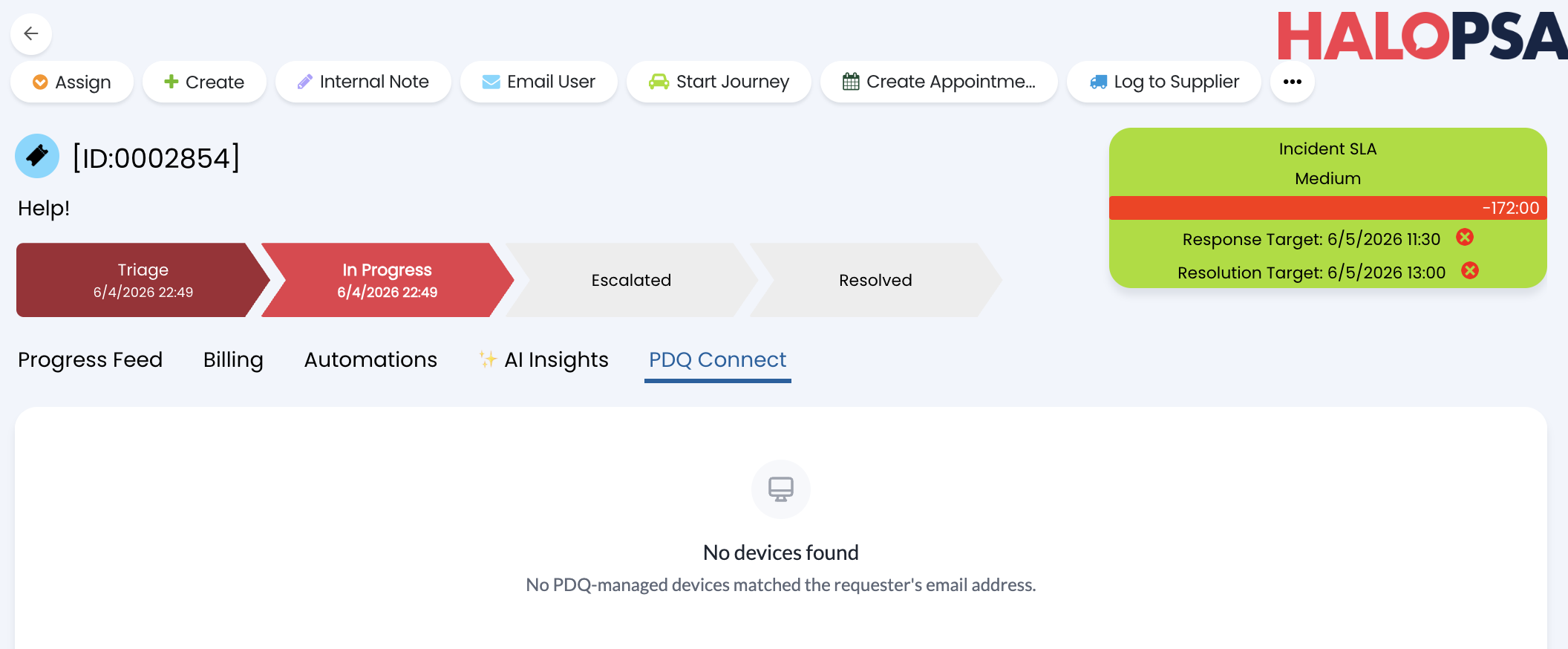
[the panel's "no devices found" empty state]
- Confirm the requester has a valid email. If it isn't in the Custom Tab URL, the Worker needs Halo OAuth to resolve it from the ticket. Without OAuth and without
$USEREMAILADDRESS, there's no email to match on. -
Logged-on-user tenants: the requester's email local part is compared to the device's
currentUserorlastUser. Forjane.doe@acme.comto match, the device must reportjane.doeafter stripping anyDOMAIN\prefix. If the device login isn't the email local part, switch that tenant tocustom_fieldmatching. -
Custom-field tenants: check that
MATCH_CUSTOM_FIELD_IDis spelled correctly and that devices have the field populated with the requester's email. - Confirm the requester actually has a device in this PDQ tenant.
- Check the API key on
/admin– a revoked key shows as a failed health check.
"PDQ API key rejected (HTTP 401)"
The key is wrong, revoked, or belongs to a different PDQ org than the one whose devices you expect. Generate a fresh key (Step 2) and re-run setup, or update the secret with wrangler secret put.
A deployment is refused with an ownership error
This is by design. The Worker re-checks that the target device belongs to the ticket requester before deploying. If the device isn't attributed to that user, the deploy is blocked. Confirm you're deploying to a device that matches the requester, and that the ticket actually has a resolved requester email.
/admin returns 503 or 401
-
503 means no
ADMIN_SECRETis set on the Worker. Set one withwrangler secret put ADMIN_SECRET. - 401 means the password is missing or wrong. Re-enter it (any username, the secret as the password), or rotate the secret.
Setup says "ENFORCE_HMAC=true requires HALO_IFRAME_SECRET"
Enforcement needs the secret to verify against. Add HALO_IFRAME_SECRET (from Step 3) and re-run setup. FRAME_ANCESTORS is optional, since the Worker derives it from HALO_BASE_URL.
Setup stops with "spawn EINVAL" on Windows
Your bundle is older than 1.0.1. Node.js no longer lets a script start npx.cmd the way those bundles did. Download the current bundle and run npm install and npm run setup again from the new folder.
Setup stops with "KV namespace 'local-placeholder-created-by-setup' is not valid"
Your bundle is older than 1.0.1. Those bundles only created the Worker's storage namespace for OAuth tenants, so an API-key install tried to deploy with a placeholder id. Download the current bundle and re-run setup; it creates the namespace on every install.
The panel's calls return 403 for no obvious reason
The Worker fails closed when a request carries neither an Origin nor a Referer header. The panel's own calls always include Origin, so a 403 here usually means a non-browser client is hitting the endpoint.
Security and privacy
The Worker runs in your own Cloudflare account and is built to keep your credentials out of the browser. Here's what it does and doesn't do.
What it reads:
- The ticket requester's email, to identify the end user.
- With Halo OAuth set, the ticket's user, site, and (optionally) linked asset, to resolve the email and asset details.
What it can't do:
- It can't create, edit, or delete tickets or other Halo data.
- It only deploys to a device attributed to the ticket requester (the ownership check).
How your data is handled:
| Mechanism | Purpose |
|---|---|
| Secrets in Worker env | API keys and the Halo secret live as encrypted Cloudflare secrets, set with wrangler secret put. There's no database and no at-rest store PDQ controls. |
| Server-side API brokering | Every PDQ and Halo call happens in the Worker. Keys never reach the browser or the panel. |
| HMAC origin proof | Each tab load is verified against an HMAC Halo computes from your iframe secret, so the Worker has cryptographic proof the request came from your Halo install. |
| Stateless signed session | The session is a signed cookie, not a server-side store. No session database to maintain. |
| Deploy ownership check | Before any deployment, the Worker re-fetches the device and matches it to the ticket requester, refusing the deploy on a mismatch. |
Known limitations
- One Worker per Halo install. Each customer runs their own Worker. There's no shared multi-tenant service.
- Asset matching is a server-side hook only. The Worker can resolve a linked Halo asset's serial and hostname, but the panel doesn't yet match devices on them. Today it matches on the requester email.
- Requester email is required to match. Without Halo OAuth, the email has to be in the Custom Tab URL. With no email, the panel finds nothing.
- On-prem Halo needs extra networking. A self-hosted Halo behind a private network needs a Cloudflare Tunnel plus Workers VPC for the Worker to reach it.
FAQ
Do I install this from a marketplace? No. Halo has no app store, so you deploy a small Cloudflare Worker in your own account with npm run setup and point a Halo Custom Tab at it.
Does PDQ get my credentials? No. The Worker runs in your Cloudflare account and your secrets live there. PDQ holds nothing.
Can I connect more than one PDQ tenant? Yes. The wizard asks how many tenants you have and prompts for each. Devices from all of them appear together on a ticket.
Which Halo products are supported? HaloPSA, HaloITSM, and Halo Service Desk. Set HALO_PRODUCT accordingly during setup.
Do I have to enable HMAC? It's on by default and recommended, because it gives the Worker proof that a tab load really came from your Halo install. You can turn it off with ENFORCE_HMAC=false during bringup or when fronting the Worker with Cloudflare Access, but then the URL itself is the access boundary.
Where do I check that everything is wired up? The /admin page runs a live health check against PDQ and Halo and shows which secrets are set, without revealing their values.
How do I rotate a key? Run npx wrangler secret put <NAME> or re-run npm run setup. No code change, no redeploy of the panel.
Changelog
1.0.1 (October 2, 2026)
Sign in with PDQ, smoother setup, a sturdier panel.
- Connect with your PDQ login. Each PDQ Connect org can now be linked by signing in to PDQ instead of pasting an API key. Links from Halo open the right PDQ org, and the admin page shows which org is connected. Existing API-key setups keep working as they are.
- Setup works on Windows. The install wizard now completes on Windows machines, so Halo admins on Windows can deploy without borrowing a Mac.
- Setup finishes the first time. A step that previously ran only for OAuth installs now runs for everyone, so an API-key install deploys without a detour.
- Clearer answers in the panel. When a ticket has no requester email, the panel says so instead of reporting no devices. If PDQ or Halo is briefly unreachable, you see a plain error rather than a cryptic one. Times like "2 hours ago" are now accurate.
- Multi-org setups stay put. Removing one org no longer hides the others, and a removed org cannot come back by accident.
- Built for larger fleets. The panel now handles up to 5,000 devices per org and warns you if an org goes past that. Browsing packages is faster for large orgs.
- More dependable deployments. Deployments from the panel run one at a time, and if one fails you see which device and why.
1.0.0 (July 8, 2026)
- Initial Release
Related articles
